Minecraft Skin Editor (2026): Make Pro-Level Custom Skins Without Experience
Minecraft is one of the world’s most creative sandbox games, but players often want a unique character appearance that reflects their personality. While official skins usually require purchases, you can design unlimited free skins using a Minecraft Skin Editor.
This guide explains everything about Minecraft Skin Editors how they work, their features, the best editors in 2026, troubleshooting tips, and expert design advice.
What is a Minecraft Skin Editor?
A Minecraft Skin Editor is an online or mobile tool that lets you create or customize your Minecraft character skin using pixel art. These editors allow you to:
Most modern editors offer both 2D pixel editing and 3D previews, making the editing process easier for beginners.
What Is Minecraft Pocket Edition APK?
Custom skins matter more than ever because:
- Servers support high-resolution skins
- AI-assisted designs are trending
- Players want identity in multiplayer
Using a skin editor gives you total creative freedom without spending money.
Key Features of Minecraft Skin Editors
Here are all essential features explained simply and attractively:
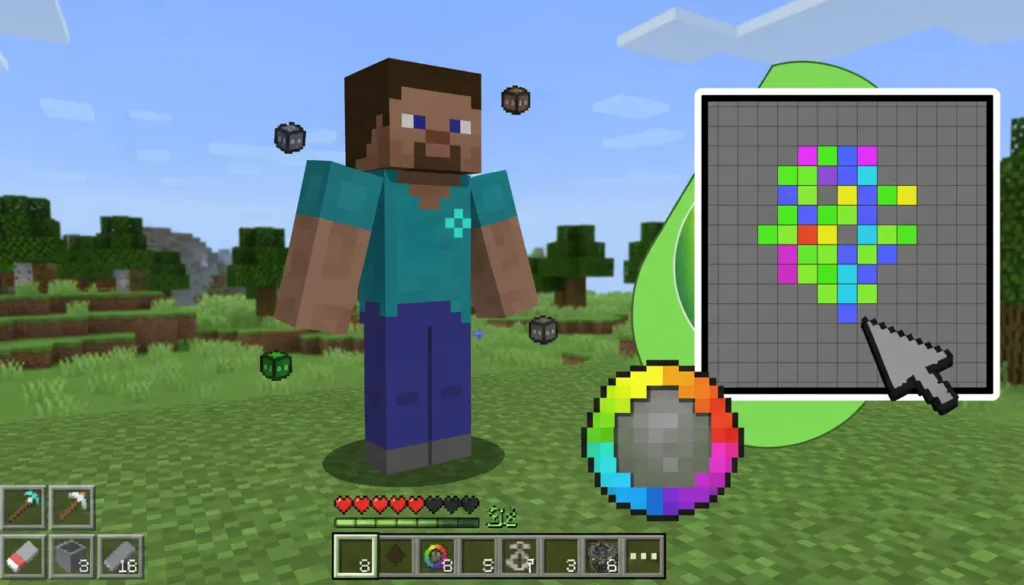
1. Pixel-by-Pixel Editing
This feature lets you control every pixel on your character. You can customize:
The zoom-in tool helps in refining tiny details like shadows or outlines.
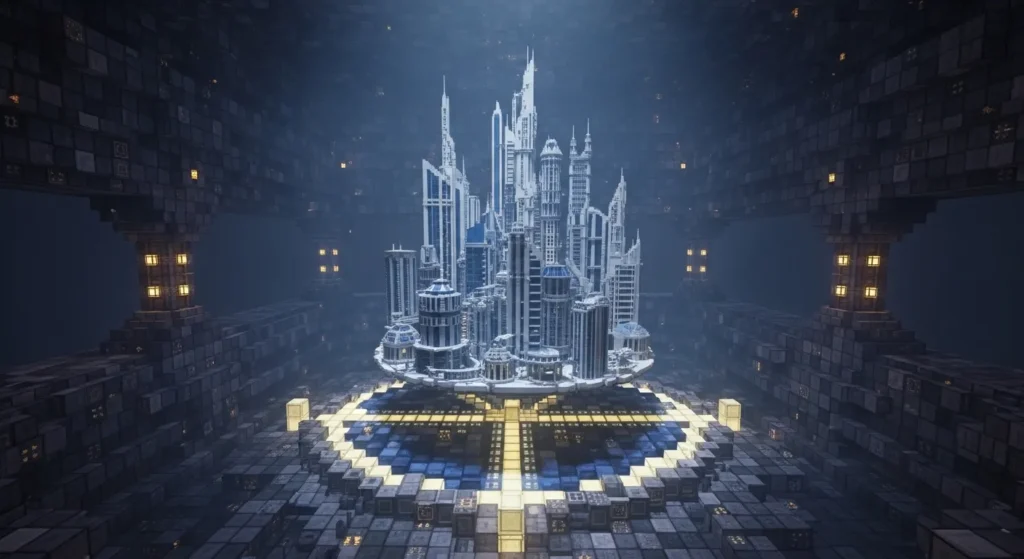
2. 3D Model Preview
A rotating 3D preview shows how your design looks on the actual Minecraft model. This helps you check:
- Front & back views
- Alignment of arms and legs
- Layer accuracy
- Color placement
It reduces mistakes before saving the final skin.
3. Layer Support
Editors offer two layers:
🧍Base Layer
Your main skin body, clothes, face.
- Head
- Body
- Arms
- Legs
- Feet
This gives your skin Normal depth and style.
) 🧢Outer Layer)
For 3D-effects like:
- Jackets
- Hoods
- Hats
- Wristbands
- Helmets
This gives your skin extra depth and style.
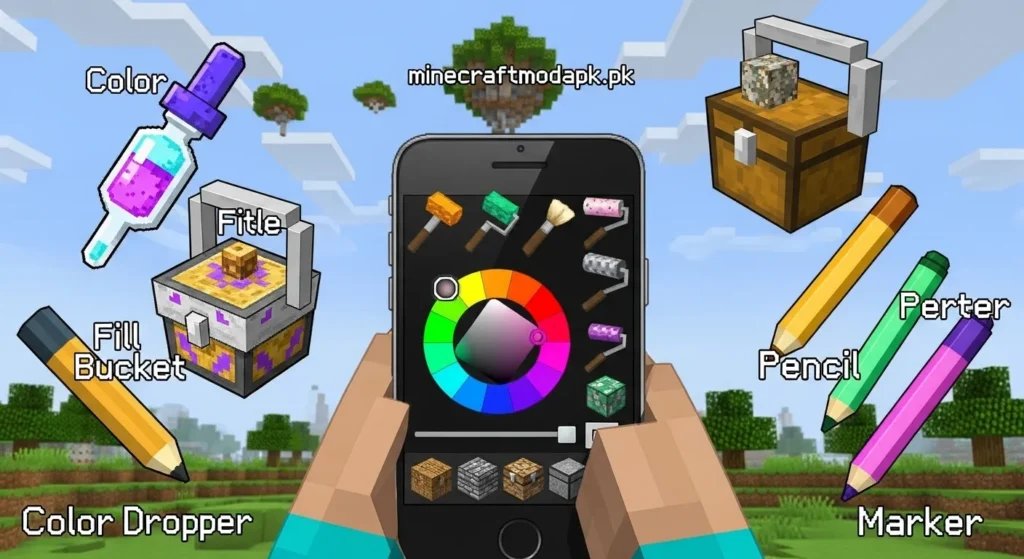
4. Color Tools & Brushes
Skin editors provide easy tools like:
- Brush
- Eraser
- Fill tool
- Color picker
- Gradient shading
- Highlight & shadow tools
These help create professional-looking skins with smooth textures.
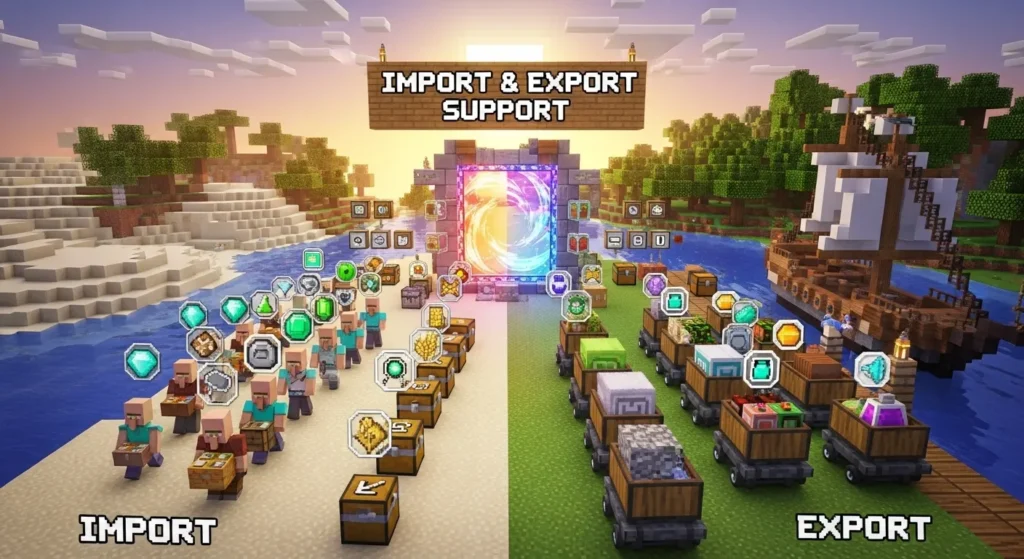
5. Import & Export Support
With this feature, you can:
- Import existing skins
- Modify downloaded skins
- Export your final design as PNG
- Directly upload it to your Minecraft profile
This makes the editor useful for both creators and casual players.
6. Built-In Templates
Editors usually include templates for:
- Steve (Classic model)
- Alex (Slim model)
And many now offer custom character shapes to make design easier for beginners.
How to Use a Minecraft Skin Editor
Using a Minecraft Skin Editor lets you customize every detail of your character, from head to toe, giving your avatar a unique look in the game.
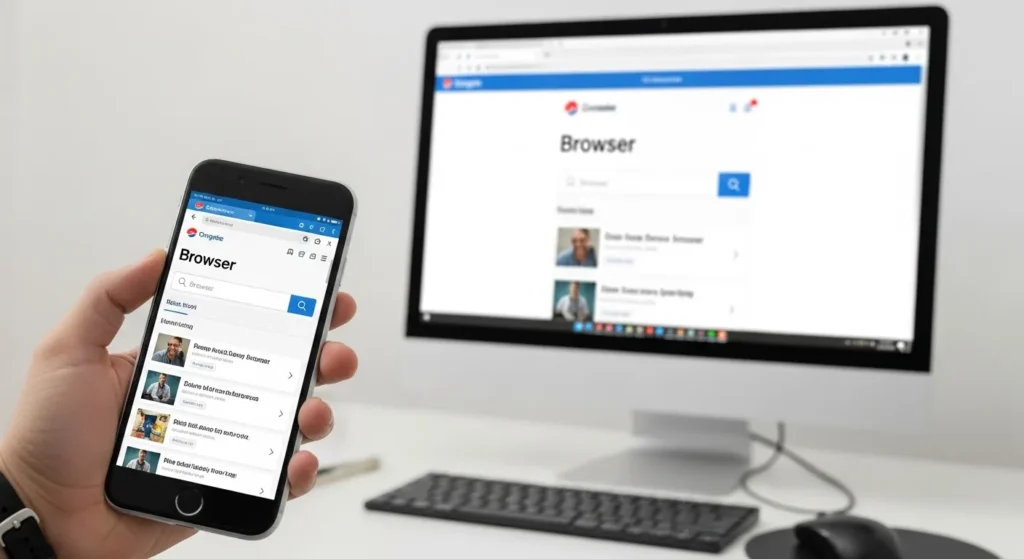
Open your browser on mobile or PC.
Use any modern browser like Chrome, Firefox, or Edge for the best experience.
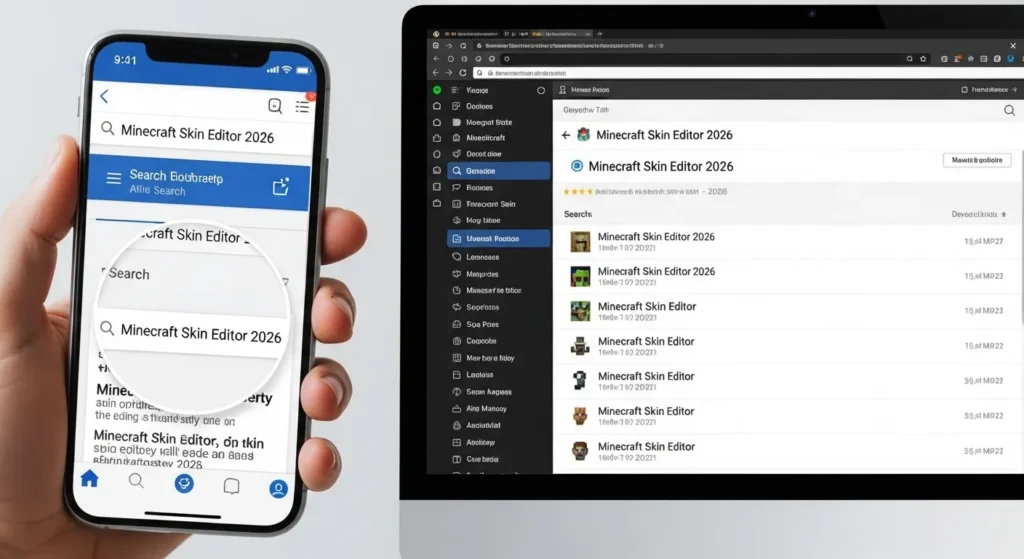
Search Minecraft Skin Editor 2026.
Search Minecraft Skin Editor 2026 in your browser to find the most updated and reliable skin editing tools.
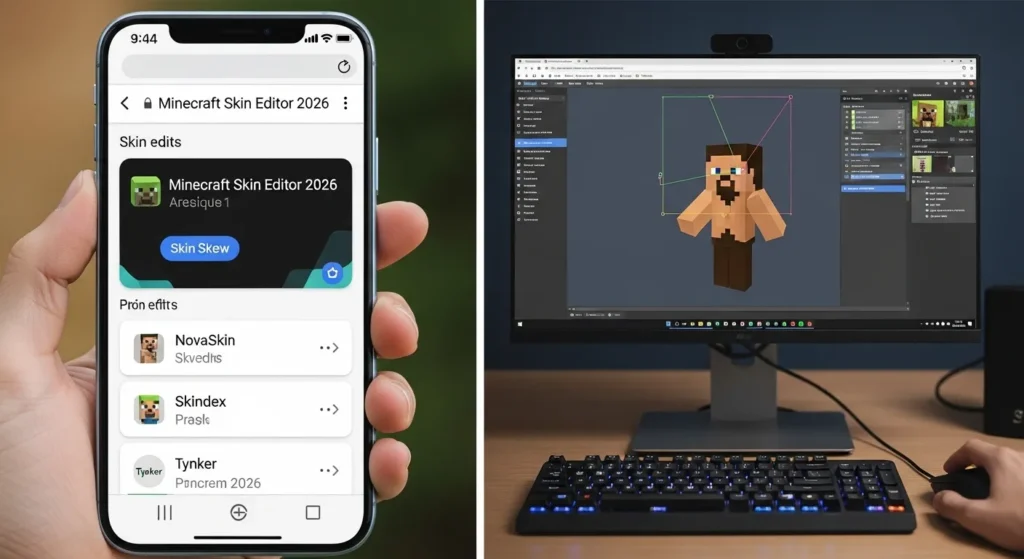
Choose an editor like NovaSkin, Skindex, or Tynker.
Choose an editor like NovaSkin, Skindex, or Tynker to start customizing your Minecraft character
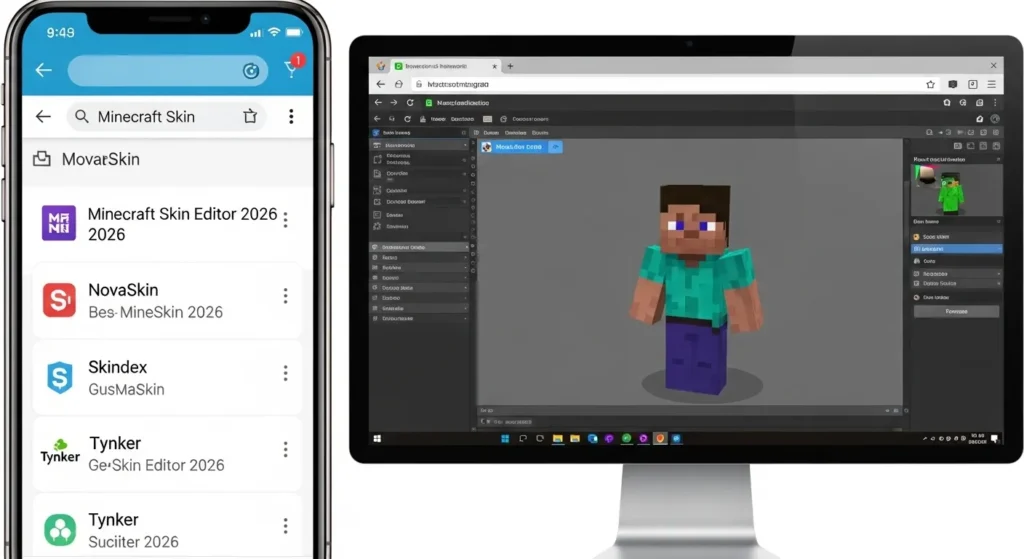
Pick a base model .
Pick a base model ( Steve, Alex, or a custom template) to start designing your Minecraft character.
Edit the skin using the brush and color tools.
Edit the skin using the brush , fill, eraser, and color tools to customize each pixel of your Minecraft character.
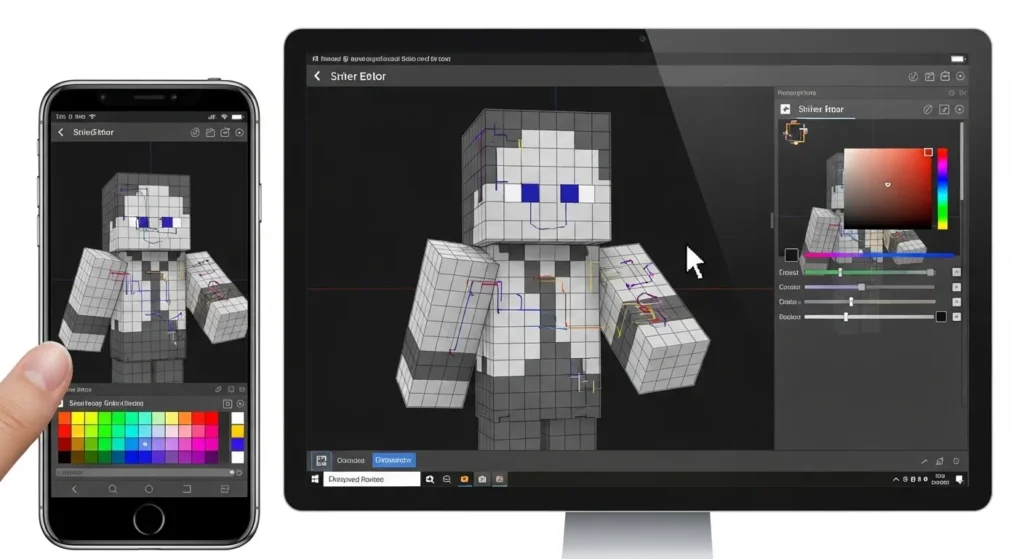
Customize body parts one by one.
Customize body parts one by one head, body, arms, legs, and feet to build your base layer before adding outer details.
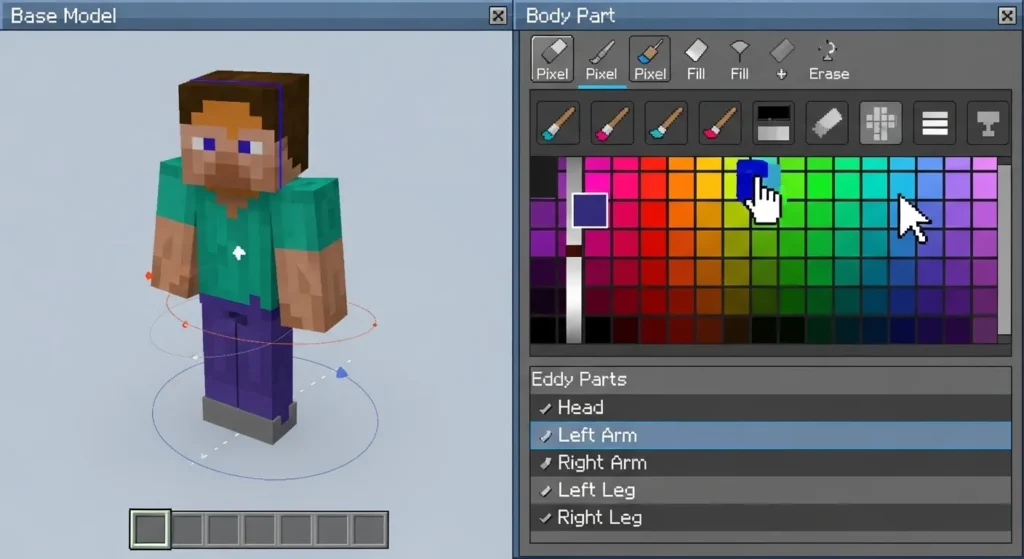
Add an outer layer for clothes or accessories.
Add an outer layer for clothes, jackets, hats, hoods, or accessories to give your Minecraft skin extra depth and style.
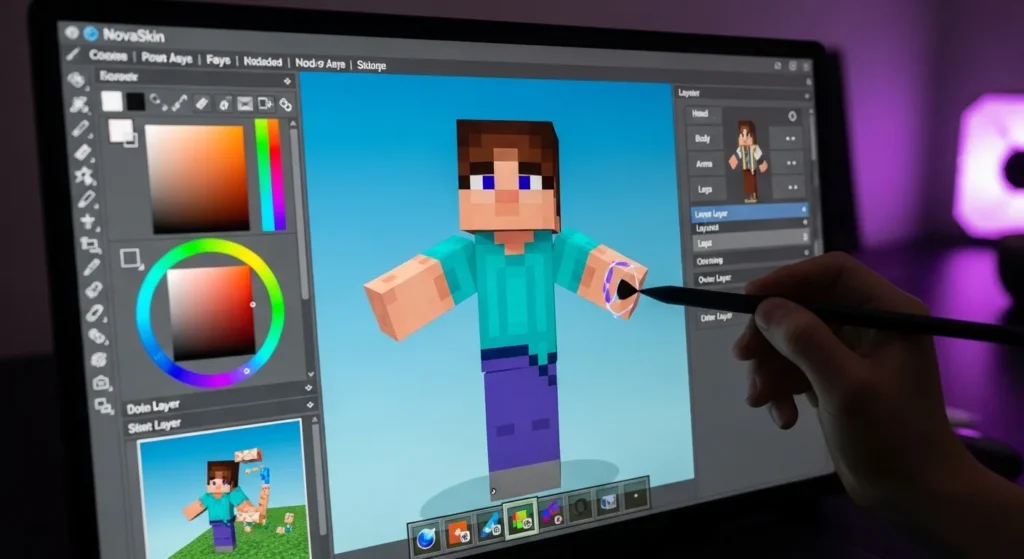
Preview your skin in the 3D viewer.
Preview your skin in the 3D viewer to check alignment, colors, and overall appearance before saving.
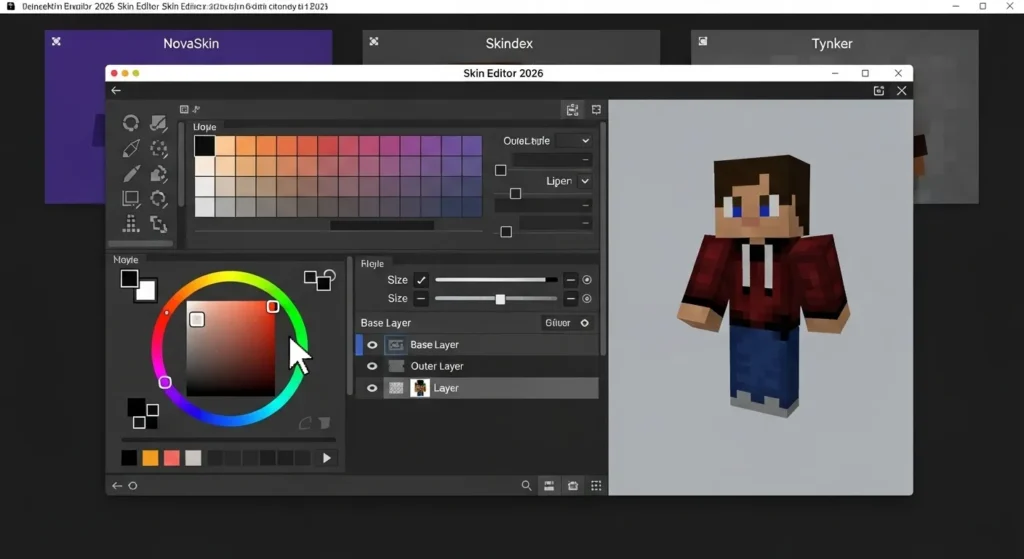
Make final adjustments to shading and alignment.
Make final adjustments to shading, colors, and alignment to ensure your Minecraft skin looks perfect.
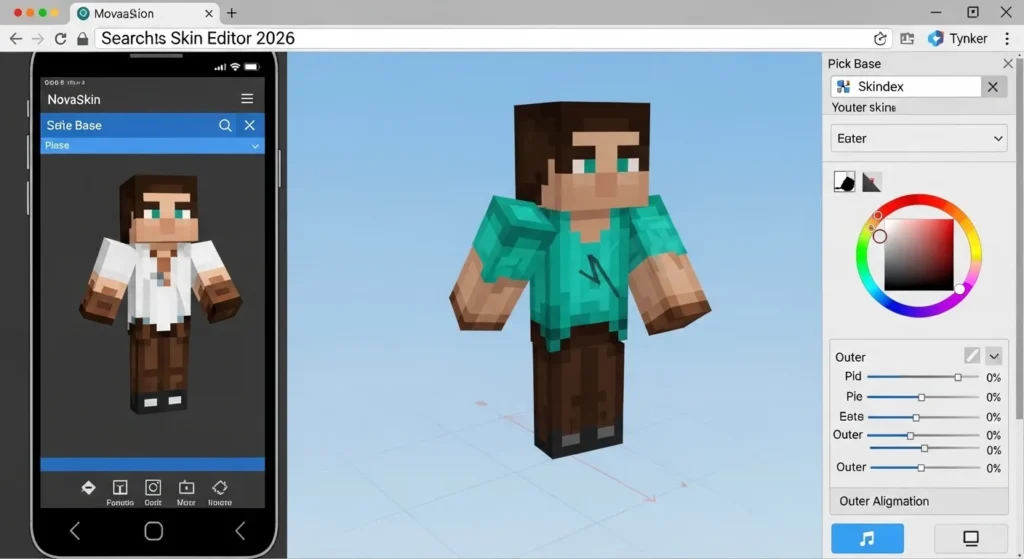
Save and download the PNG file.
Save and download the PNG file of your Minecraft skin to upload and use in the game.
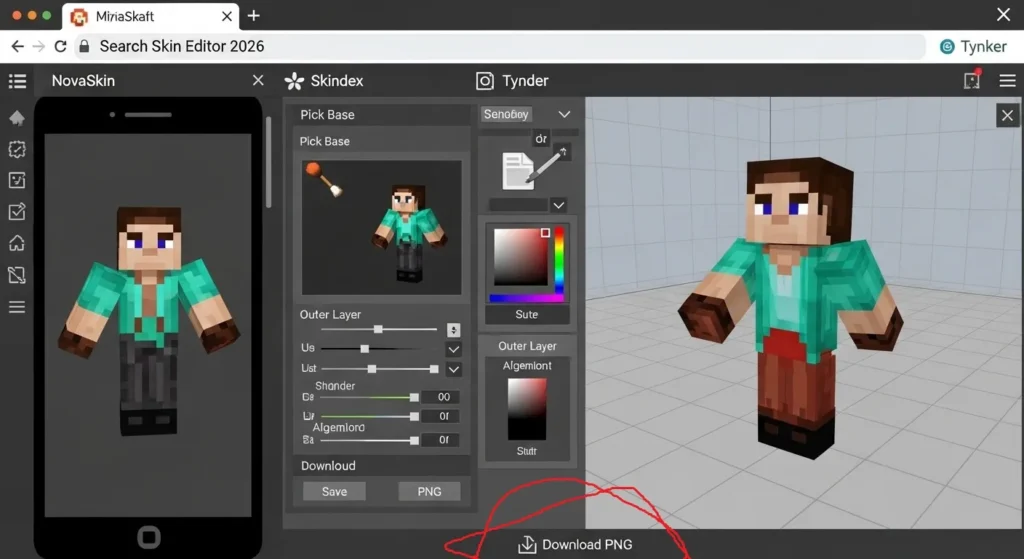
Upload it to your Minecraft account.
Upload the PNG file to your Minecraft account to apply your custom skin and start playing with your unique character.
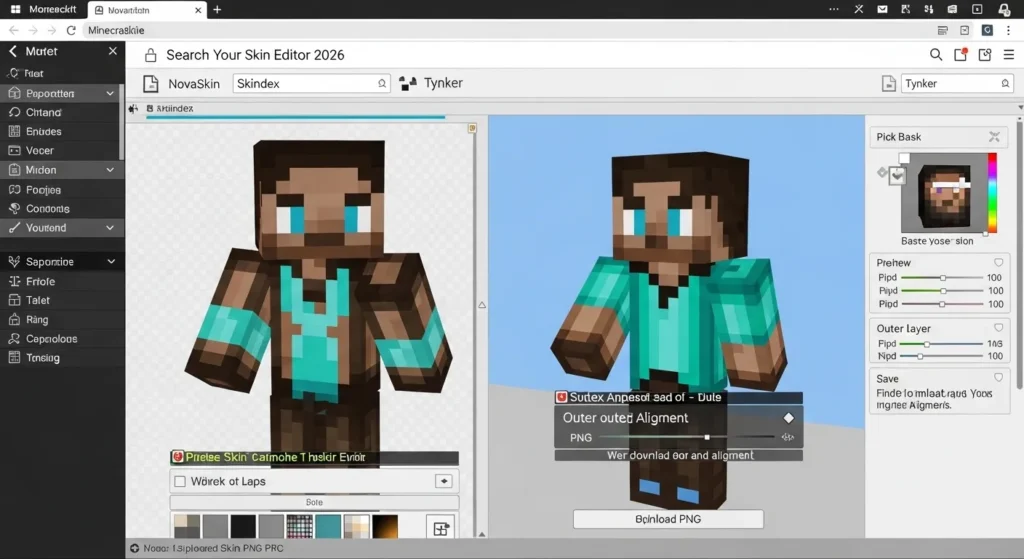
Best Minecraft Skin Editors in 2026
Here are the most reliable and beginner-friendly editors available:
1. NovaSkin
- Advanced shading tools
- High-quality 3D preview
- Professional editing controls
- Large community gallery
Perfect for creators who want detailed skins.
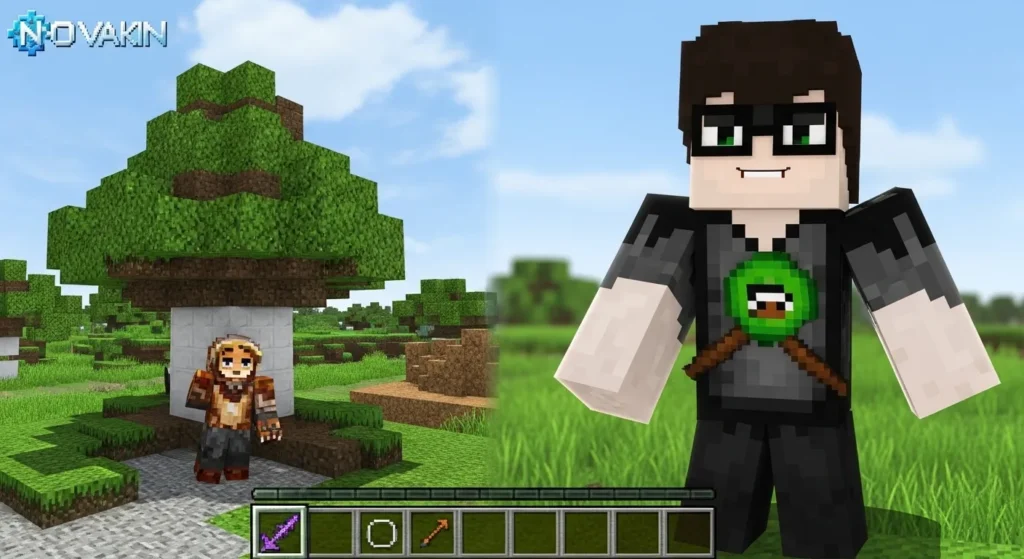
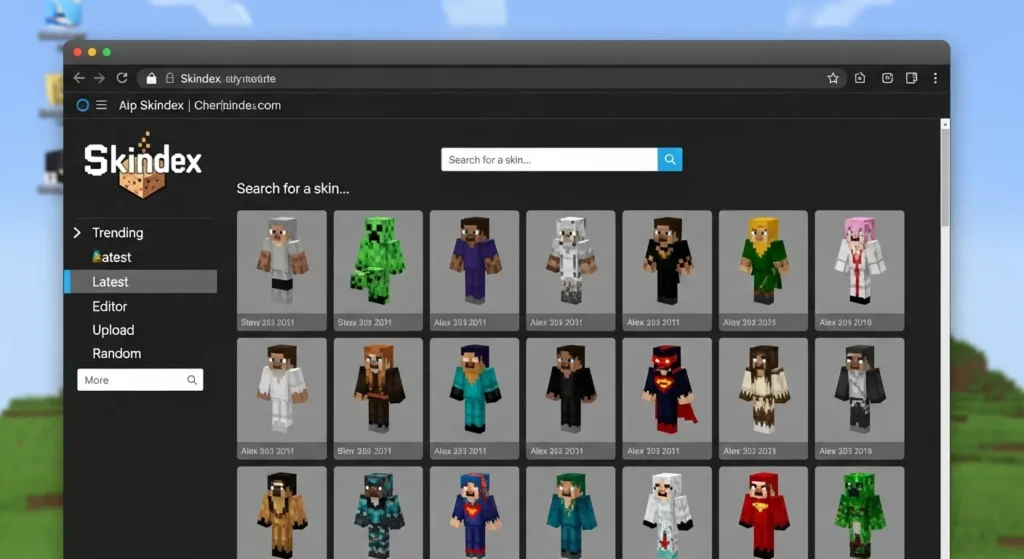
2. The Skindex
- Simple and friendly interface
- Fast loading
- Ready-made skins
- Remix and upload option
Ideal for beginners and quick edits.
3. Planet Minecraft
- Built-in editor
- Massive skin community
- User rating system
Great for creators who want to share skins with a big audience.
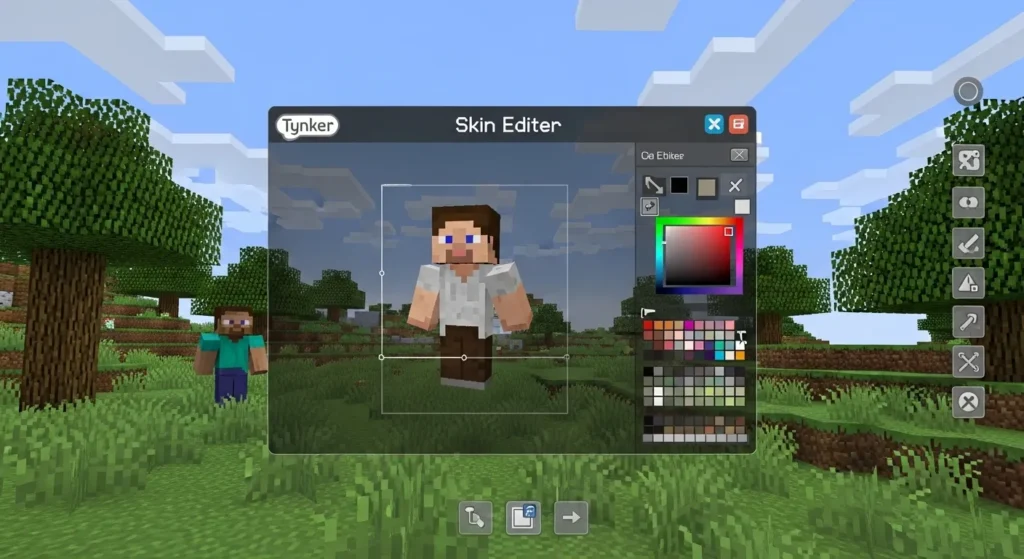
4. Tynker Skin Editor
- Easy for kids
- Colorful interface
- Perfect for school use
- Supports coding-based creativity
A fun editor for younger players.
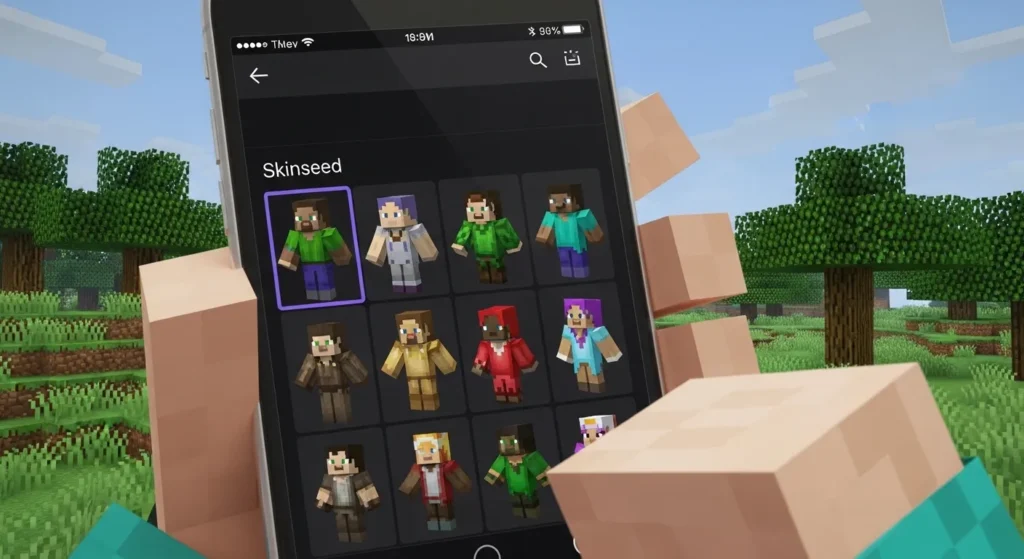
5. Skinseed (Mobile App)
- Best for Android/iOS
- Easy-to-use tools
- Remix feature
- Direct export to Minecraft
Perfect for skin editing on the go.
Limitations of Skin Editors
Skin editors are powerful, but they do have limitations:
Low Resolution
Minecraft skins are either 64×64 or 128×128, which limits tiny details.
No Animation
Skins cannot blink, move, or animate without separate resource packs.
Model Restrictions
Most editors only support Steve or Alex shapes.
Performance Lag
Low-end devices may lag with 3D previews.
Learning Curve
Shading and texture design require practice.
Common Problems & Simple Solutions
1. Skin Not Updating in Minecraft
- Choose correct model (Classic ≠ Slim)
- Re-upload PNG
- Restart the game launcher
2. Colors Look Different In-Game
In-game lighting may change colors. Test your skin in:
- Daylight
- Night mode
- Caves
- Servers
3. Outer Layer Misalignment
- Recheck in 3D mode
- Zoom in on edges
- Keep outer layers thin
4. Upload Errors
- Clear browser cache
- Check internet connection
- Log in again on Minecraft.net
Pro Tips to Create Beautiful Skins
Here is how to make your skins look premium:
- Use soft shading to add depth
- Mix light & dark tones for clothing folds
- Avoid too much detail on low-res skins
- Keep accessories minimal
- Test the skin on multiple backgrounds
- Save frequently to avoid losing progress
These tips help your skin look much more professional.
Conclusion
Minecraft Skin Editors are a fun and powerful way to personalize your character without buying official skins. With tools like NovaSkin, Skindex, and Skinseed, anyone can create detailed, stylish skins in just a few minutes. Whether you’re a beginner or a pro designer, these editors make customization simple, fast, and enjoyable.
Bookmark our website and turn on notifications to stay updated with the latest guides, Minecraft tips, and APK updates.